You open Instagram, but something feels wrong. Posts disappear without warning. Buttons refuse to respond. Stories fail to load. And that frustrating “Try Again Later” keeps appearing, over and over. Your feed isn’t broken; it’s acting like a puzzle you can’t solve.
This isn’t just your device. In 2026, a widespread Instagram update bug is silently affecting millions worldwide, causing chaos in accounts big and small.
But here’s the kicker, most users have no idea why it happens or how to fix Instagram errors, and that’s exactly what this guide is about. By the time you finish reading, your app will finally behave the way it’s supposed to.
Before any tips and data about article, if you decide to have Instagram stories or videos without losing quality, you can use the professional ucmini Instagram downloader tools and archive any content with one click.
(8) Most Common Instagram Bugs + Practical Solutions
By 2026, several issues will have become widespread among users. Disappearing posts, frozen buttons, login errors, blocked actions, and sudden crashes are now typical experiences caused by the Instagram update bug.
These glitches can affect anyone, regardless of account size, and usually appear after updates or during server problems. The following sections break down each common bug and explain how it can be fixed step by step.
1. Posts Vanishing from Profiles
Sometimes, posts disappear without any warning, leaving your profile looking incomplete.
This usually happens due to synchronization errors between the app and Instagram servers or corrupted cache files. Users often panic thinking their content is lost, but in most cases, it is easily recoverable.
How to fix?
- Update Instagram to the latest version.
- Clear the Instagram cache to remove corrupted files
- Log out and back in to refresh profile data
2. Action Blocked and Why Instagram Fights Back
Instagram may temporarily restrict actions like liking, commenting, or following due to the Instagram update bug.
This action-blocked message occurs when the platform detects unusual activity, such as excessive interactions in a short period, which it flags as suspicious behaviour.
How to troubleshoot?
- Pause all activity for 24–72 hours.
- Switch between Wi-Fi and mobile data.
- Reinstall the app to remove corrupted settings.

3. Crashes and Freezing App
The app may unexpectedly close or become unresponsive, often due to low device storage, outdated versions, or conflicts with other installed apps.
This is referred to as the Instagram crashing problem. It interrupts smooth usage and can be very frustrating during active sessions.
How to solve?
- Free up storage and close unnecessary background apps
- Update Instagram to patch known glitches
- Restart the app after clearing temporary files
4. Try Again Later Errors
Users may face problems, like a “Try Again Later” message, when performing actions due to the Instagram update bug, caused by server overloads or suspicious activity on the account. It prevents liking, commenting, or following temporarily.
How to address?
- Wait a few hours and pause activity
- Switch networks to ensure proper connectivity
- Clear the cache or reinstall the app if the issue persists
5. Cache Problems Slowing Down the App
Corrupted temporary files can cause the Instagram app to not respond or slow performance. This makes navigation sluggish, stories load slowly, and interactions feel delayed.
How to restore?
- On Android; Settings > Apps > Instagram > Storage > Clear Cache
- On iOS, offload the app via Settings > General > iPhone Storage > Instagram > Offload App
- Restart the app for immediate improvement
Read more: If your stories are blurry or low quality, read our expert troubleshooting tips in Why are my Instagram stories blurry? to keep your pixels sharp.
6. Reinstalling Instagram for Stability
Persistent glitches that don’t respond to normal fixes may require following an Instagram reinstall guide to fix the Instagram update bug.
A fresh install removes corrupted files, refreshes app settings, and often resolves multiple issues at once.
How to resolve?
- Backup important content
- Uninstall Instagram completely
- Download the latest official version
- Log in and verify the app works properly
7. Server Problems and Connectivity Checks
Sometimes glitches are external, caused by Instagram server problems or network interruptions. These can lead to frozen buttons, missing content, or delayed notifications.
How to mend?
- Check Instagram status pages or outage trackers
- Switch between Wi-Fi and mobile data
- Restart your device to refresh connectivity
Read more: When you encounter the message “This Story Is Unavailable”, it is best to first check the reason in the article Why is this story unavailable in 2026.
8. Account Glitches and Login Issues
Minor errors can appear as Instagram account glitches caused by the Instagram update bug, including frozen screens, delayed notifications, or failed message delivery. These often appear after updates or due to corrupted data.
How to rectify?
- Reset your password
- Clear cache and app data
- Enable two-factor authentication
Consider that for more data about logging out of your account or sign in on another device, learn the simple and secure way to log out of Instagram.

(3) Tested Ways to Prevent Bugs and Maintain App Stability
In addition to fixing the Instagram update bug, proactive measures help maintain a smooth Instagram experience. Regular updates, removing problematic third-party apps, and using built-in security features reduce the risk of encountering the update bug.
Following basic Instagram update troubleshooting steps also ensures your account remains stable. The following sections explain each method and how to implement them correctly.
1. Keeping Instagram Updated
Updating Instagram ensures you have the latest bug fixes, security patches, and performance improvements.
How it’s done:
- Enable automatic updates
- Check release notes for bug fixes
- Regularly update to prevent the Instagram update bug from returning
2. Avoiding Third-Party App Conflicts
Unauthorized apps can cause hidden errors. Instagram app issues often result from third-party software promising followers, likes, or analytics enhancements.
How it’s done:
- Remove apps interfering with Instagram
- Avoid third-party services
- Stick to official features and approved extensions
3. Contacting Support for Persistent Problems
When problems continue, using Instagram error fix, Instagram update bug support is essential. Official help resolves hidden posts, blocked actions, or repeated login failures.
How it’s done:
- Submit reports via in-app support
- Provide screenshots and detailed explanations
- Follow instructions carefully for prompt resolution
In the end, Before Instagram stops counting your likes and follows, check out Instagram Limits in 2026and discover the secrets of the platform’s rules and restrictions.
| Issue / Bug | Cause | Quick Fix | Preventive Tip |
| Posts disappearing | Sync error / corrupted cache | Update app, clear cache, log out/in | Keep Instagram updated |
| Action blocked | Unusual activity / bug | Pause activity 24–72h, switch network | Avoid excessive actions, use official features |
| Crashes / freezes | Low storage / outdated version | Free storage, update app, restart | Regularly clear cache, update app |
| “Try Again Later” error | Server overload / suspicious activity | Wait, switch network, reinstall if needed | Check connectivity, avoid automation tools |
| Cache problems | Corrupted temporary files | Clear cache (Android/iOS) | Clear cache regularly |
| Login / account glitches | Update bug / corrupted data | Reset password, clear app data, enable 2FA | Keep app updated, use official features |
| Third-party conflicts | Unauthorized apps | Remove conflicting apps | Stick to official apps and extensions |
How to Tell What Is Causing Your Instagram Problem
Not every Instagram problem is caused by an update. A broken feature can come from your internet connection, the app itself, your device, your account, or a temporary Instagram outage.
That is why reinstalling the app should not always be your first move. A quick diagnosis can help you find the likely cause before changing anything.
Start With Three Quick Checks
Before trying more advanced fixes, check these three things:
1. Test another connection
Switch from Wi-Fi to mobile data, or from mobile data to a different Wi-Fi network. If Instagram starts working normally, the problem may be related to your connection rather than the app.
2. Test Instagram on another device
If the same account works normally on another phone, your account is probably not the main problem. The issue may be related to the original device, app installation, storage, or operating system.
3. Check whether other Instagram features work
If Stories load but your Feed does not, or DMs work while Reels fail, the problem may be limited to a specific Instagram feature. You do not necessarily need to reset the entire app.
Use This Simple Diagnosis
| What you notice | More likely cause | First thing to try |
|---|---|---|
| Instagram does not load at all | Network or outage | Change network and check again later |
| Only one feature is broken | Feature-specific issue | Restart the app and test again |
| The app crashes repeatedly | App or device issue | Update Instagram and free storage |
| Instagram works on another device | Device or installation issue | Reinstall or update the app |
| Actions like likes or follows are blocked | Account restriction or unusual activity | Stop repetitive activity and wait |
| The problem started immediately after an update | App compatibility or software bug | Check for another update and restart |
| Several people report the same issue | Instagram-side problem | Wait for the service to recover |
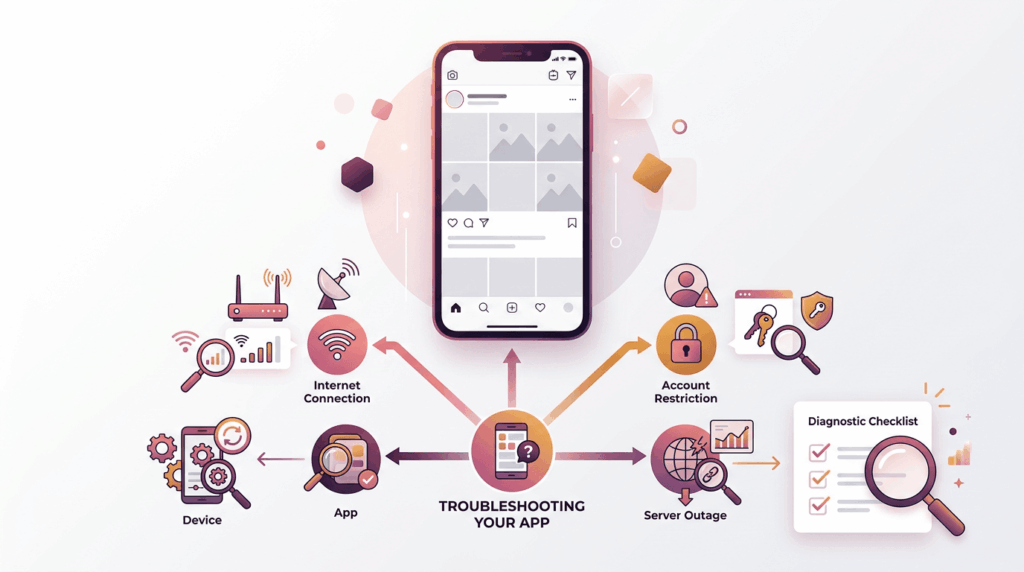
This approach also helps you avoid repeating the same fix when it is unlikely to solve the actual problem.
When You Should Wait Instead of Reinstalling
If Instagram suddenly stops working across multiple devices or networks, reinstalling the app may not change anything. The problem could be on Instagram’s side.
The same applies when a specific feature suddenly stops working while everything else appears normal. In these situations, give the service some time and check again before making major changes.
On the other hand, if Instagram works normally for other people but continues failing only on your device, local troubleshooting makes more sense.
What About “Try Again Later” and Action Blocks?
A “Try Again Later” message does not automatically mean there is an Instagram update bug. It can appear in situations involving temporary restrictions, unusual activity, connectivity problems, or technical issues.
If you recently performed many similar actions in a short period, stop repeating them instead of trying to bypass the restriction with another app or automation tool.
Avoid services that promise to remove Instagram action blocks instantly. Giving an unknown service access to your account can create a bigger security problem than the original error.
A Better Troubleshooting Order
Instead of randomly trying different fixes, use this order:
Check the connection → Restart Instagram → Check for updates → Test another device or network → Wait for possible service issues → Reinstall the app → Contact Instagram support
This gives you a simple way to separate a temporary Instagram problem from an issue that actually needs action on your device or account.
The goal is not to find one magic fix. It is to identify where the problem is coming from first, then use the fix that matches it.
Conclusion
The Instagram update bug of 2026 can disrupt posts, actions, and app performance, but most issues are fixable. By following the steps outlined, resolving common bugs, maintaining updates, limiting third-party conflicts, and using support when needed, you can keep your account stable and glitch-free.
With these measures, your Instagram experience becomes reliable, secure, and ready for smooth use in 2026 and beyond.
Let’s hear from you about fixing the Instagram update bug! Have you ever faced disappearing posts? Share your experience below. Which fix solved your Instagram issues fastest?
Comment now. Try clearing your cache today and see how your Instagram performs. Reinstall Instagram if glitches persist to keep your account stable.
Why are my Instagram posts disappearing after an update?
Clear the app cache or reinstall Instagram to restore missing posts.
What does “Instagram action blocked” mean, and how long does it last?
It’s a temporary restriction for unusual activity, usually 24–72 hours.
Why does Instagram keep crashing on my device?
Update the app, free storage, and clear cache to fix crashes.
How can I prevent future Instagram update bugs?
Keep the app updated, avoid third-party apps, and use official features.
What should I do if my Instagram still doesn’t work after trying fixes?
Contact Instagram support with details and follow their instructions.