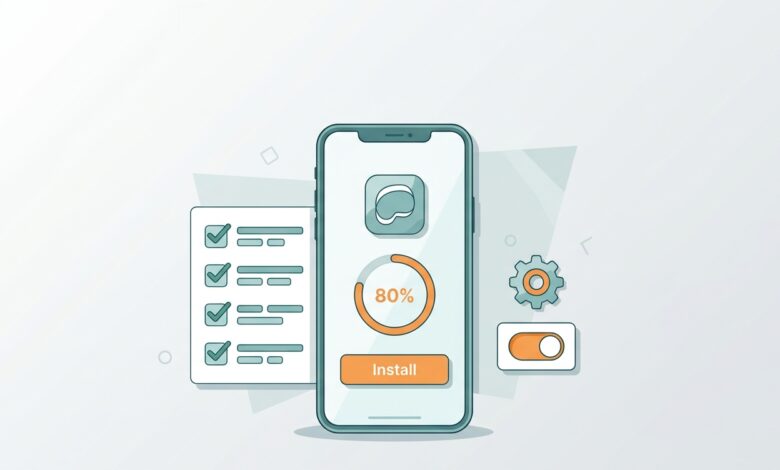
Getting through a UC Mini Browser install should take about two minutes, yet plenty of people get stuck on a permission screen or an “App not installed” message. This guide removes the guesswork. You will see the two main methods, how Android’s install settings differ by version, what to check on first launch and how to fix the errors that trip people up. If you are still choosing a file, start with the main UC Mini browser download page and then come back here.
Quick answer: install from Google Play if the listing is available, or open the APK file and allow installation from the app you used to open it. Check the package name com.uc.browser.en, then review permissions on first launch.
Before You Start: Three Quick Checks
- Free storage. UC Mini is small, but the installer needs temporary room. A couple of hundred megabytes free is a comfortable cushion on any phone.
- Android version. Open Settings, then About phone. Older builds support old systems, while recent builds expect newer ones. If you are unsure, see our UC Mini download old version table.
- Connection. A stable Wi-Fi connection prevents corrupted downloads.
Method 1: Install UC Mini from Google Play
This is the easiest way, and the safest because the store scans apps and updates them automatically.
- Open Google Play and search for “UC Mini”.
- Look for the listing named “UC Mini-Download Video Status” from UCWeb Singapore Pte. Ltd.
- Tap Install and wait for the progress bar to finish.
- Tap Open, or find the icon in your app drawer.
If you cannot see the app in your region, or your phone lacks Google services, move on to Method 2.
Method 2: Install the UC Mini APK Manually
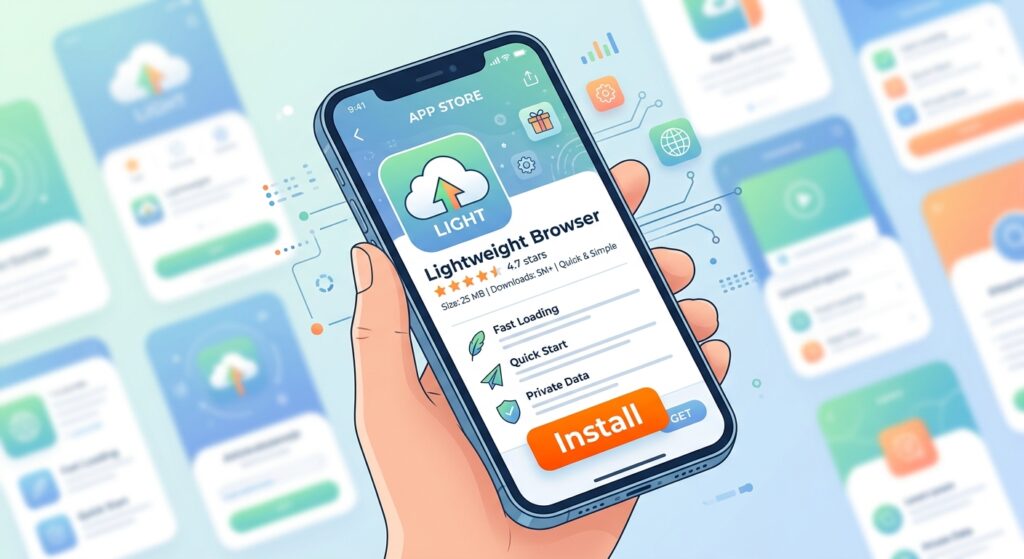
Sideloading is a normal Android feature. It simply moves the checking job from the store to you, so follow the safety checklist on our UC Mini APK download page.
- Download the APK and note its version and size.
- Open it from the notification bar or your Downloads folder.
- When Android blocks the install, tap Settings and allow installs from that source.
- Go back and tap Install.
- Open the app, then return to Settings and turn the permission off again.
How the permission differs by Android version
| Android version | Where the setting lives |
|---|---|
| Android 8.0 and newer | Permission is granted per app, for example for your browser or file manager |
| Android 7.1 and older | A single “Unknown sources” switch in Security settings |
Menu names vary between brands, so use the search bar in Settings and type “install unknown apps” if you cannot find it.
Comparing the Two Install Methods
| Factor | Google Play | APK |
|---|---|---|
| Ease | Very easy | Easy with a few extra taps |
| Safety checks | Automatic | Manual |
| Updates | Automatic | Manual |
| Version choice | Latest only | Any available version |
| Needs Google services | Yes | No |
What to Do on First Launch
Your first two minutes in the app set the tone for everything after. Here is a short routine.
- Review permissions. Release notes for some versions mention permissions such as approximate location and Bluetooth for added features. Deny anything you do not need.
- Turn on the ad blocker. You will find it in the settings menu.
- Pick your search engine. Choose one you trust.
- Trim the start page. Reduce navigation cards and promoted tiles if they bother you.
- Test a download. Save a small file to confirm that the storage location works.
UC Mini Browser App Download and Install: Common Errors
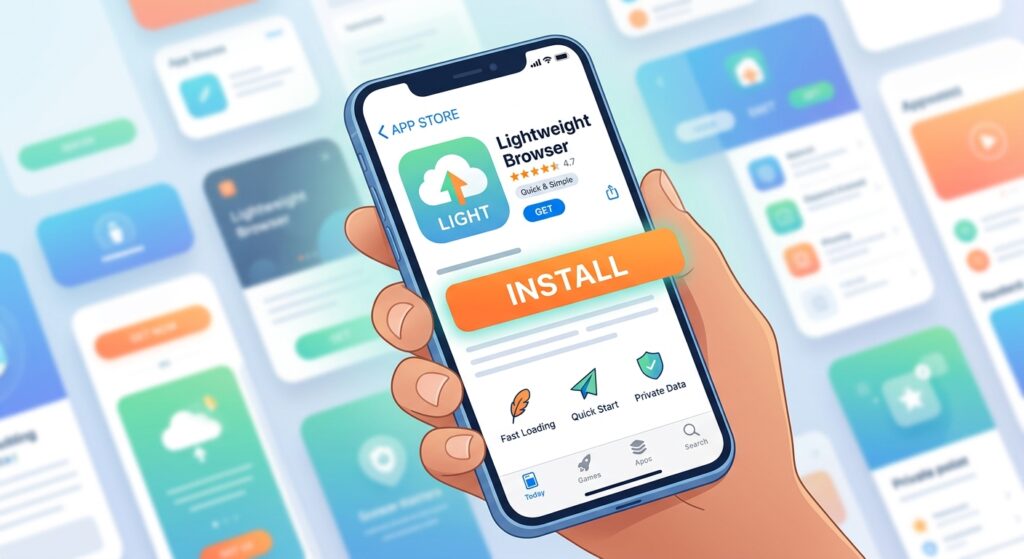
Searches like uc mini browser app download and ucmini browser app download often come from people who hit one of these walls.
| Message or symptom | Cause | Solution |
|---|---|---|
| App not installed | Wrong build for your Android, or an older copy in the way | Uninstall the old copy and install a matching build |
| There was a problem parsing the package | Corrupted or incomplete file | Download again over a stable connection |
| Install blocked by security | Unknown-source permission is off | Allow installs for your browser or file manager just once |
| Insufficient storage | Not enough free space to unpack the file | Delete unused apps or files and retry |
| App opens then closes | Incompatible version or corrupted cache | Clear cache and data, or reinstall a stable version |
| Play Protect warning | Google flags unknown or unverified files | Check the package name and source; do not continue if anything looks off |
If the Install Keeps Failing: Try This Order
When an install refuses to work, random tapping wastes time. Work through these steps in sequence and stop as soon as one fixes the problem.
- Restart the phone. It clears stuck installer processes and sounds too simple to help, but it often does.
- Free up space. Remove unused apps, old downloads and cached photos.
- Delete the downloaded file and fetch it again. A partial download is the most common hidden culprit.
- Remove any older UC Mini copy. Version conflicts block installs.
- Try a different build. If a recent version fails on your phone, step back to an earlier one that matches your Android release.
- Check the date and time. A wrong system clock can cause odd verification failures on some phones.
Installing UC Mini on a Phone with Very Little Storage
This situation is exactly why the browser exists, so it deserves a few extra tips. Clear the cache of apps you rarely use, move photos to a memory card or cloud backup, and install UC Mini before you download any big files with it. If the phone still complains, pick a smaller, older build and keep an eye on how much space downloads consume afterwards. Many people forget that a browser’s download folder can quietly grow to several gigabytes.
How to Update or Reinstall UC Mini
If you installed from Google Play, updates arrive on their own unless you turned them off. If you installed an APK, download the newer APK and tap it. Android will offer to update the existing app. If you see a conflict, uninstall the old copy first. Remember that uninstalling erases app data, so back up bookmarks beforehand where possible.
How to Uninstall UC Mini
- Long-press the app icon, or open Settings, then Apps.
- Select UC Mini.
- Tap Uninstall and confirm.
- Optionally clear leftover downloads from your Downloads folder.
Changed your mind about privacy? Our overview of is UC Mini browser safe helps you decide whether the app fits your comfort level.
Installing on Other Devices
Using a tablet follows the same steps as a phone. For a computer, you need an emulator, and we walk through that in UC Mini Browser download for PC. If you are deciding between this and the bigger sibling app, read UC Browser vs UC Mini first.
FAQ: UC Mini Browser Install
How long does a UC Mini Browser install take?
Usually under two minutes, depending on file size and connection speed.
Do I need to root my phone?
No. A normal APK install does not require root access.
Why does Android warn me about unknown apps?
The warning appears for any file installed outside an official store. It is a safeguard, not a sign that something is wrong with this particular app.
Can I install UC Mini and UC Browser side by side?
They use different packages, so Android generally allows both. Whether you want both is another matter, since they overlap.
Where can I find more answers?
Our UC Mini browser FAQ covers common questions about downloading and installing.
Final Thoughts
A smooth install comes down to the right file, the right permission and a quick settings pass at the end. Use Google Play when you can, verify any APK you use and keep your sensitive logins in a more privacy-focused browser. For the full range of options, return to the UC Mini browser download guide, or see what current builds contain on our UC Mini 2026 page.