Searching for a UC Mini download old version usually means one of two things. Either your phone is too old for the current release, or a recent update made the app slower, heavier or more cluttered than you like. Both reasons are completely valid, and both have clean solutions. This page maps the older uc mini apk generations to the Android versions they support, explains the risks of running legacy builds and shows you how to roll back without losing your data. For the full picture, see the main UC Mini browser download guide.
Quick answer: archive listings show 10.x builds supporting Android 2.1 to 2.3, 11.x builds needing Android 4.0, and the 12.9 line needing Android 5.0. Pick the newest build your Android version allows, and use older builds only for light, low-risk browsing.
Why People Look for an Older UC Mini Version
- Old hardware. Phones from the Gingerbread and Ice Cream Sandwich era cannot install newer packages.
- Performance. On low-memory devices a leaner, older build can feel snappier than a modern one.
- Interface preferences. Some people simply prefer how earlier versions looked and behaved.
- Stability. If a fresh update causes crashes, rolling back is a quick fix.
UC Mini Old Versions by Android Version
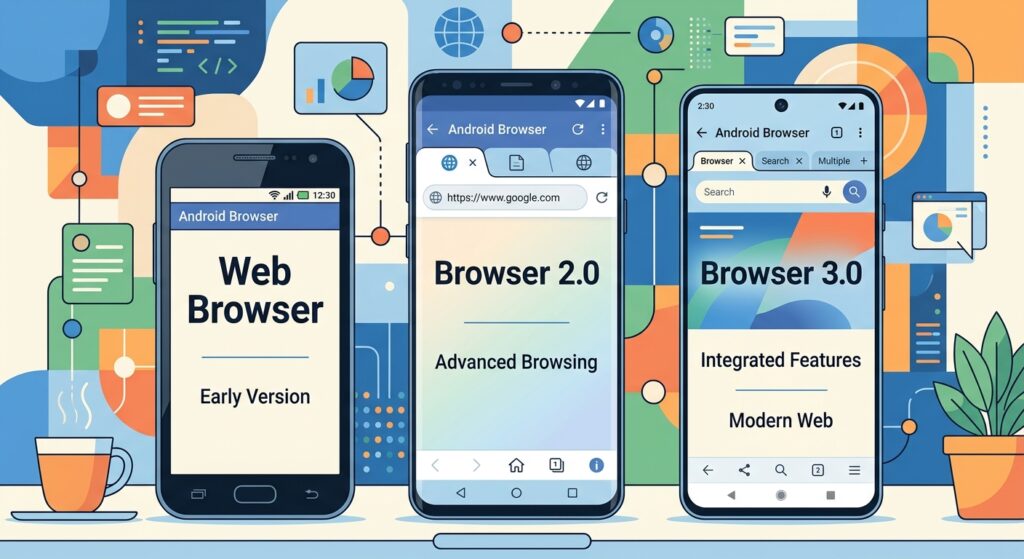
The table below summarizes what public APK archives report. File details can vary by variant, so always double-check the listing you are looking at.
| Build range | Minimum Android | Notable details from listings |
|---|---|---|
| 10.5.0 | Android 2.1 | Release note advertised a 20 percent faster browsing experience |
| 10.7.x | Android 2.3 | Very small packages, around 1.5 to 1.8 MB |
| 11.0.x | Android 4.0 | Mid-era builds with the classic mini interface |
| 11.1.x | Android 4.0 and up | Added a speed mode menu with data saving, text-only and ad blocker options, and HD video playback |
| 12.9.x | Android 5.0 | Roughly 9.6 to 12.9 MB, built for Lollipop and newer |
If you are unsure which row applies, check Settings, then About phone. The number next to “Android version” is the one that counts.
How to Install an Older UC Mini Version Safely
- Back up first. Export bookmarks if the app allows it, or note anything important.
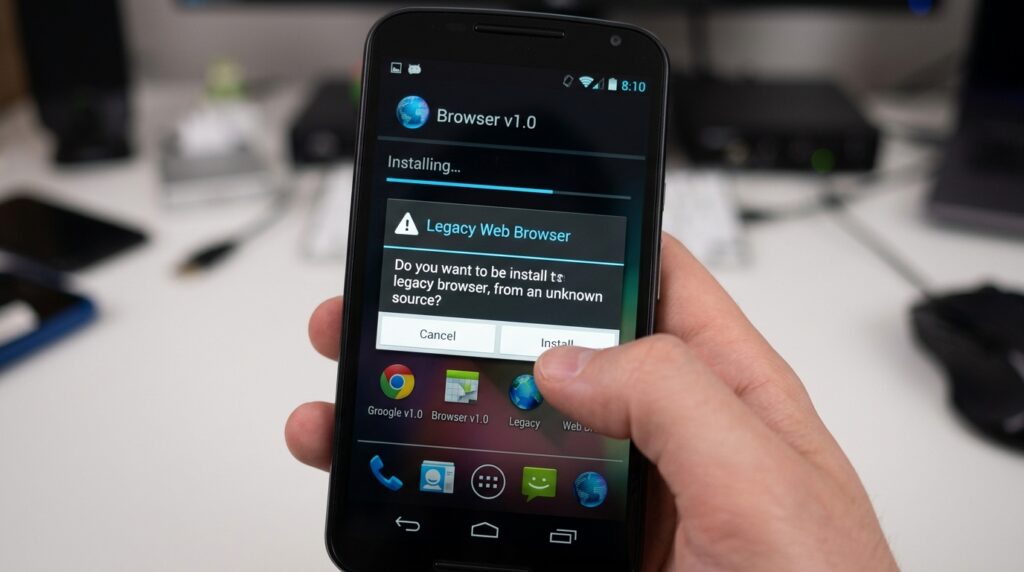
- Uninstall the current version. Android will not let you install an older build on top of a newer one, so removal is required.
- Download the older APK. Choose a mirror that shows the version number, package name and size. The genuine package name is
com.uc.browser.en. - Allow installation from your file manager or browser. Switch the permission off afterwards.
- Open the app and turn off auto-update prompts if you want to stay on that build.
Our step-by-step UC Mini Browser install page covers each screen in more detail, and the general file-checking advice lives on the UC Mini APK download page.
The Risks of Running an Old Build
Let’s be direct. Old software is old for a reason. A browser faces the open internet every time you use it, so missing patches matter more here than in, say, a calculator app.
| Risk | What it means for you |
|---|---|
| Missing security fixes | Known weaknesses stay open |
| Website incompatibility | Modern pages may break or load oddly |
| Weak encryption support | Some sites refuse the connection |
| No support from the developer | Bugs in old builds will not be fixed |
Security researchers have criticized UC Browser’s data handling in the past, as we explain in is UC Mini browser safe. That makes older builds a poor choice for sensitive tasks. A phone running Android 2.3 should not be used for banking, shopping with saved cards or work email.
When an Old Version Is a Smart Choice
- You are reviving an old spare phone for reading news or playing music.
- You want a basic browser for a child’s hand-me-down device with parental limits.
- Your phone has very little storage and cannot hold a larger modern package.
- You need a quick fallback while you troubleshoot a bigger browser.
When You Should Upgrade Instead
Wondering whether the bigger sibling app would run better on your phone? Our comparison of UC Browser vs UC Mini explains the trade-offs, and if you would rather try the app on a computer, see UC Mini Browser download for PC.
If your phone runs Android 5.0 or higher, stay on a newer build. You gain better compatibility and a smaller chance of security surprises. Our overview of UC Mini 2026 shows what recent releases look like, and the UC Mini download New version section helps you decide whether a fresh install is worth it.
Old Version vs New Version at a Glance
| Old version | New version | |
|---|---|---|
| Package size | Very small | Larger |
| Phone support | Very old devices | Android 5.0 and up for recent lines |
| Security | Outdated | Better maintained |
| Features | Basic | More services and video tools |
| Best use | Light browsing on legacy phones | Daily use on current phones |
Quick Decision Guide: Which Old Version Should You Pick?
If the table still leaves you unsure, work through these three questions in order.
- What Android version does your phone run? Android 2.x points you to the 10.x family. Android 4.x points to 11.x. Android 5.0 or higher can use the 12.9 line or something newer.
- Do you need speed mode and ad blocking? Listings indicate that the 11.1 releases introduced a speed mode menu combining data saving, text-only mode and an ad blocker, so earlier builds will not have that bundle.
- How much storage can you spare? The 10.x packages are tiny, while the 12.x line is larger. On a phone with almost no free space, size may decide for you.
Once you have your answer, write down the exact version number and keep the APK file somewhere safe. That way you can reinstall quickly if you ever reset the phone.
Tips to Keep an Old UC Mini Build Running Smoothly
- Clear the cache every week or two so the app does not hog scarce storage.
- Close other apps before you open the browser, because older phones have very little spare memory.
- Turn on speed mode and text-only options, if your build includes them, to reduce loading work.
- Keep the number of open tabs low. Two or three tabs are plenty on a legacy handset.
- Avoid downloading very large files straight to a nearly full memory card.
Real-World Experience: What Users Report
Across phone forums and review sections, users with older handsets tend to say the same few things. Many appreciate how a small build opens quickly on weak hardware. Others report storage or download hiccups when saving large files, especially on phones with small or aging memory cards. A few note that downloading media through the browser caused trouble on very old devices, which is a reminder to test with a small file first and keep some free space available.
That kind of feedback is anecdotal, so treat it as a hint rather than a guarantee. If something misbehaves, clearing the cache or switching to a slightly newer build often settles it.
FAQ: UC Mini Download Old Version
Can I install an old UC Mini over a newer one?
No. Android blocks downgrades, so you must uninstall the newer version first.
Will I lose my bookmarks when I roll back?
Uninstalling removes app data, so back up what matters beforehand if the app offers an export.
Is an old uc mini download less safe?
Generally yes, because it lacks recent security patches. Use it for low-risk browsing only.
Why does my new APK say “App not installed”?
Usually the build needs a newer Android than your phone has, or an older copy is conflicting. Our UC Mini browser FAQ lists more fixes.
Final Thoughts
Rolling back to an older build can breathe life into an aging phone, and it is a perfectly reasonable move when you respect the limits. Match the build to your Android version, keep sensitive activity off legacy devices and upgrade whenever your hardware allows. For every other route, from fresh installs to PC emulation, head back to the UC Mini browser download guide.